Mixing & Mastering Tip #223 ·
How I connected my task manager and client data to Reaper

Ruslan Slatin
Mastering engineer at SLATIN, Madrid
I am obsessed with optimizing my workflow.
So, taking advantage of my Christmas “break”, I ended up programming some amazing stuff for my Reaper setup.
Yes, Reaper. The one I like to call the “Linux” of DAWs. And I mean that in the best way possible.
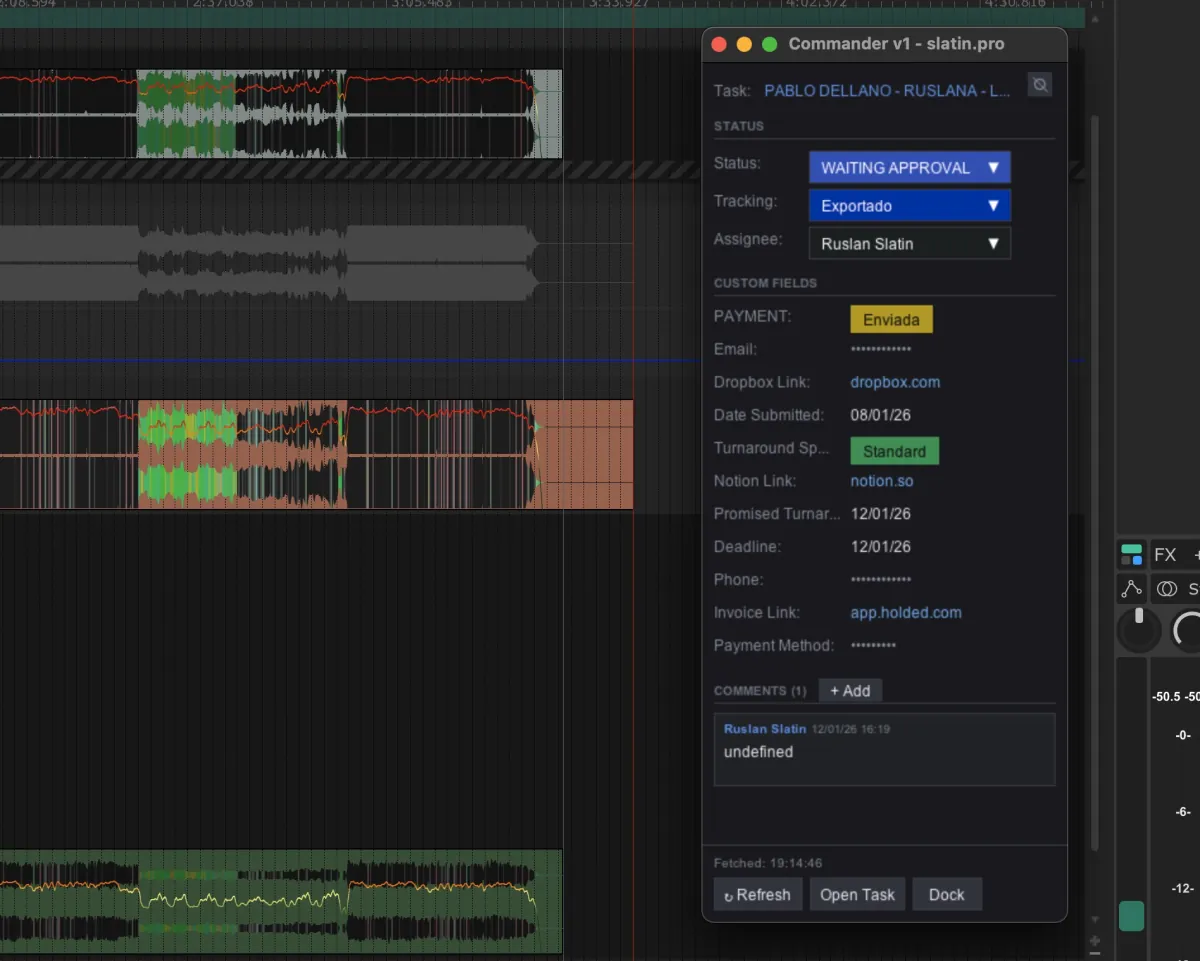
No tab switching, all real time
I got tired of constantly changing windows and apps.
If you’ve visited my website or worked with me before, you know the whole client journey is fully automated, but one thing was missing: connecting my website and task manager directly to my DAW.
So now, as soon as I open a project, a window pops up with that project’s information. It syncs in real time, and I don’t have to leave the DAW at all during mastering sessions.
The screen updates automatically depending on which project I have open. Open a project, and the info updates.
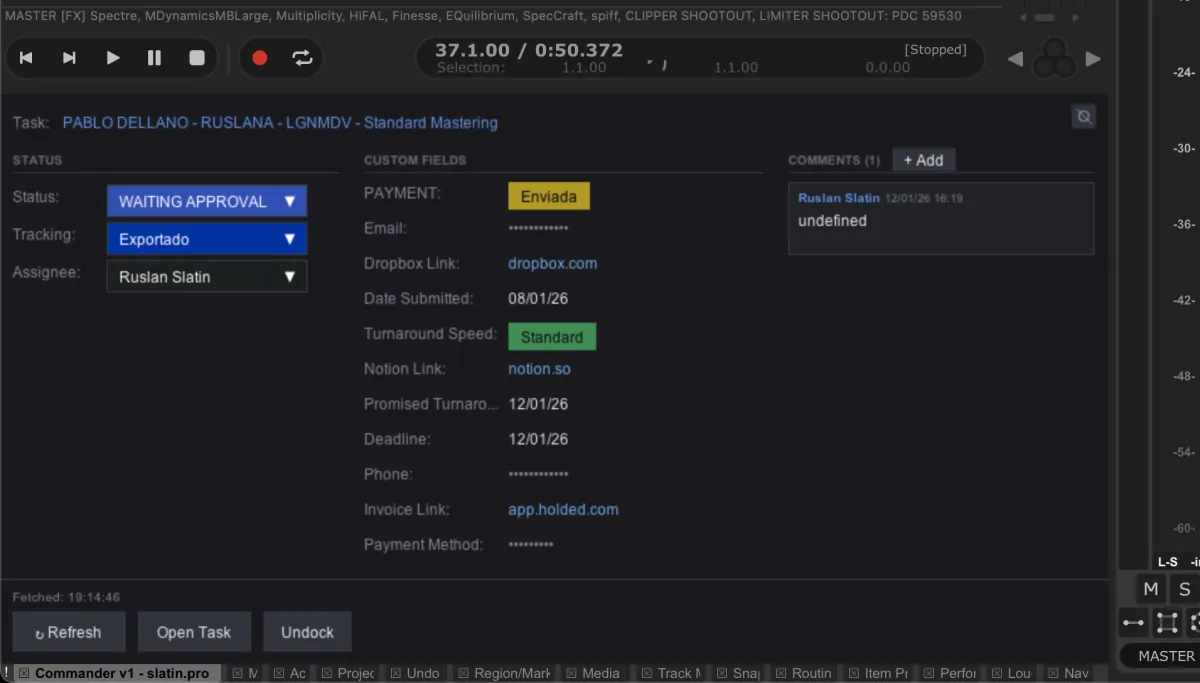
Privacy and communication
I added censorship for personal data, so I can use this setup during my mentorships with zero fear of exposing client information.
From inside the DAW, I can:
- Read all project notes left by my assistant
- Update the current status of the song
- See in real time the state of the payment/invoice for the track
- See deadlines, specifications and client notes
- Open WhatsApp or email with the client and start typing
- Talk with my team in real time through comments
So yeah, you keep using your “Pro Tools”, while I keep programming my pro tools. Just kidding, I love you all, no matter the DAW you use.
Want this on your own track?
I master more than 1,000 songs a year for artists and labels, from stems or a stereo mix. Send me your track and I'll tell you what it needs.
A new tip like this every week, free: join the newsletter.
Work with me
Whenever you're ready, here's how I can help.
 MentoringMix & Master AcceleratorWeekly video reviews of your tracks, live group calls, and the business side of a studio career.By applicationApply now
  Preset packFUSION150 hand-crafted Valhalla VintageVerb presets. Three clicks to the sound you already hear in your head.20€Get the pack
  CourseAdvanced MicrodynamicsFour hours on the micro-level movement that makes a mix feel alive. Joined by 220+ students.149€See the course
  CourseLow End MasteryKick and bass chemistry, so your low end lands on club rigs and earbuds alike. Joined by 500+ students.159€See the course
  SoftwareStudiOSThe software I run my own studio on: deliveries, client feedback, versions and invoices in one place.14 days freeTry StudiOS