Mixing & Mastering Tip #201 ·
Why groups cause CPU spikes in Ableton Live, and how to fix it

Ruslan Slatin
Mastering engineer at SLATIN, Madrid
If you’ve been wondering why your CPU meter is suddenly freaking out in Ableton Live, grouping might be the sneaky villain.
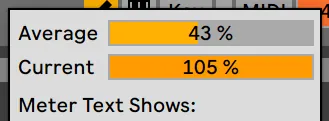
Here’s the thing: when you put tracks in a group in Live, all the tracks in that group get processed on the same CPU core.
So if you’ve got a bunch of heavy plugins (oversampling, linear phase EQs, CPU-hungry saturators), that single core is going to cry. Loudly.
How to fix it
- Copy all of your group’s plugin processing (good old Cmd+C / Ctrl+C).
- Create a new track. This is going to be your new bus.
- Ungroup the individual tracks so Ableton stops using a single CPU core.
- Select all those tracks and route their output to the new bus track.
- On that bus track, make sure “In” is selected, so you hear it live.
- Lastly, disable all sends on the bus track so you don’t double-route effects.
Boom: instead of choking one CPU core, you’re now spreading the processing across multiple cores.
You get less glitching, smoother playback and a happier you.
But if you group them again, you’ll be back to square one.
Credit for this one goes to @productionmusiclive on Instagram.
Want this on your own track?
I master more than 1,000 songs a year for artists and labels, from stems or a stereo mix. Send me your track and I'll tell you what it needs.
A new tip like this every week, free: join the newsletter.
Work with me
Whenever you're ready, here's how I can help.
 MentoringMix & Master AcceleratorWeekly video reviews of your tracks, live group calls, and the business side of a studio career.By applicationApply now
  Preset packFUSION150 hand-crafted Valhalla VintageVerb presets. Three clicks to the sound you already hear in your head.20€Get the pack
  CourseAdvanced MicrodynamicsFour hours on the micro-level movement that makes a mix feel alive. Joined by 220+ students.149€See the course
  CourseLow End MasteryKick and bass chemistry, so your low end lands on club rigs and earbuds alike. Joined by 500+ students.159€See the course
  SoftwareStudiOSThe software I run my own studio on: deliveries, client feedback, versions and invoices in one place.14 days freeTry StudiOS